Campaigns and Perspectives
Overview
NodeZero campaigns and perspectives help your organization track how your security posture changes over time, from the attacker’s viewpoint. A perspective is automatically created every time you create and save a pentesting template. Campaigns enable you to organize perspectives into groups that align with your organization’s security initiatives, compliance goals, and team structures.
With these two capabilities together, you can easily see how your results are changing over time, and get recommendations for additional pentest coverage.
Example scenarios:
- Define campaigns for different network segments or security zones, to track the security posture of different segments over time.
- Use a campaign corresponding to different blue teams, to keep track of fixer progress.
- Use campaigns to keep an eye on compliance-related test coverage, to keep your compliance up-to-date.
Runner hints
Because these features are designed to assess repeated tests over time, their UI will nudge you to assign tests to Runners.
Campaign View
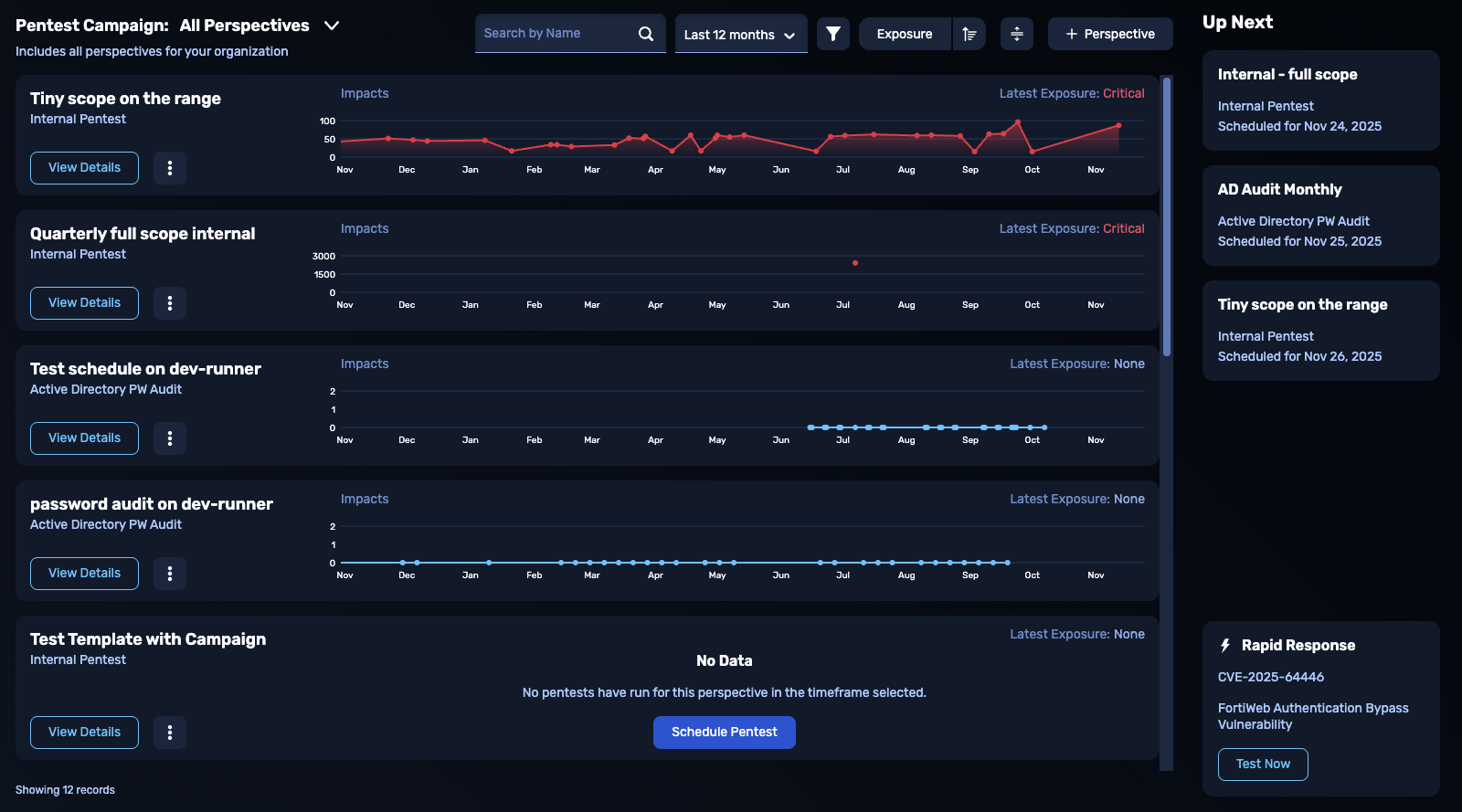
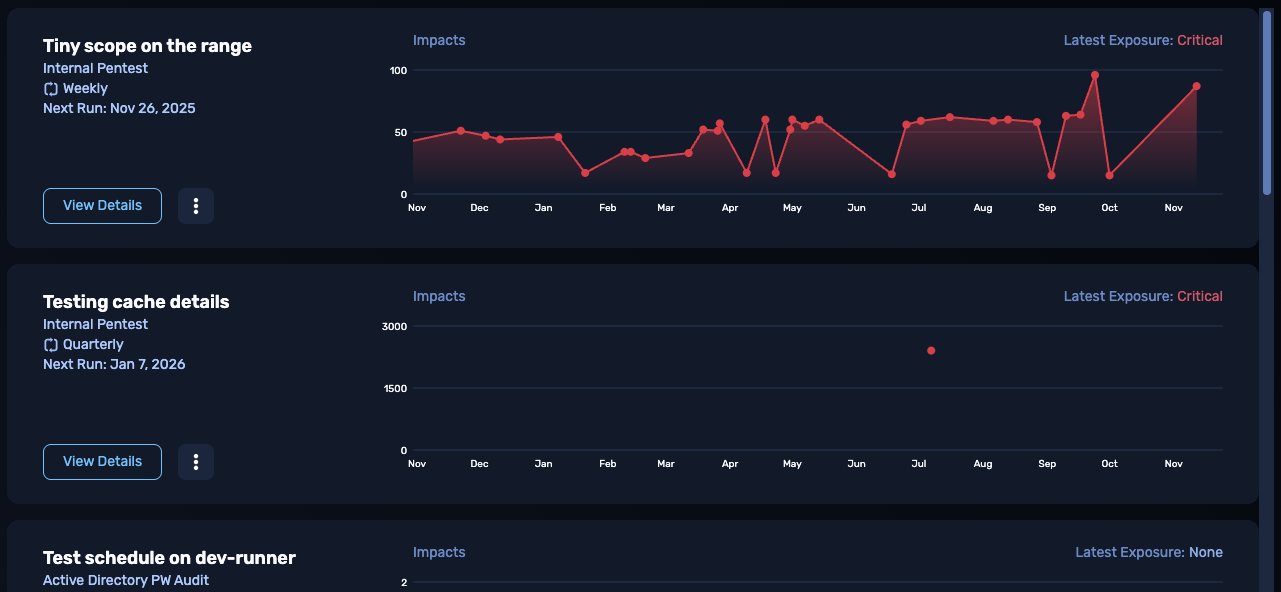
You access campaigns (and perspectives) by selecting the Perspectives tab at the top of the NodeZero Portal. The main view for a campaign looks like this:
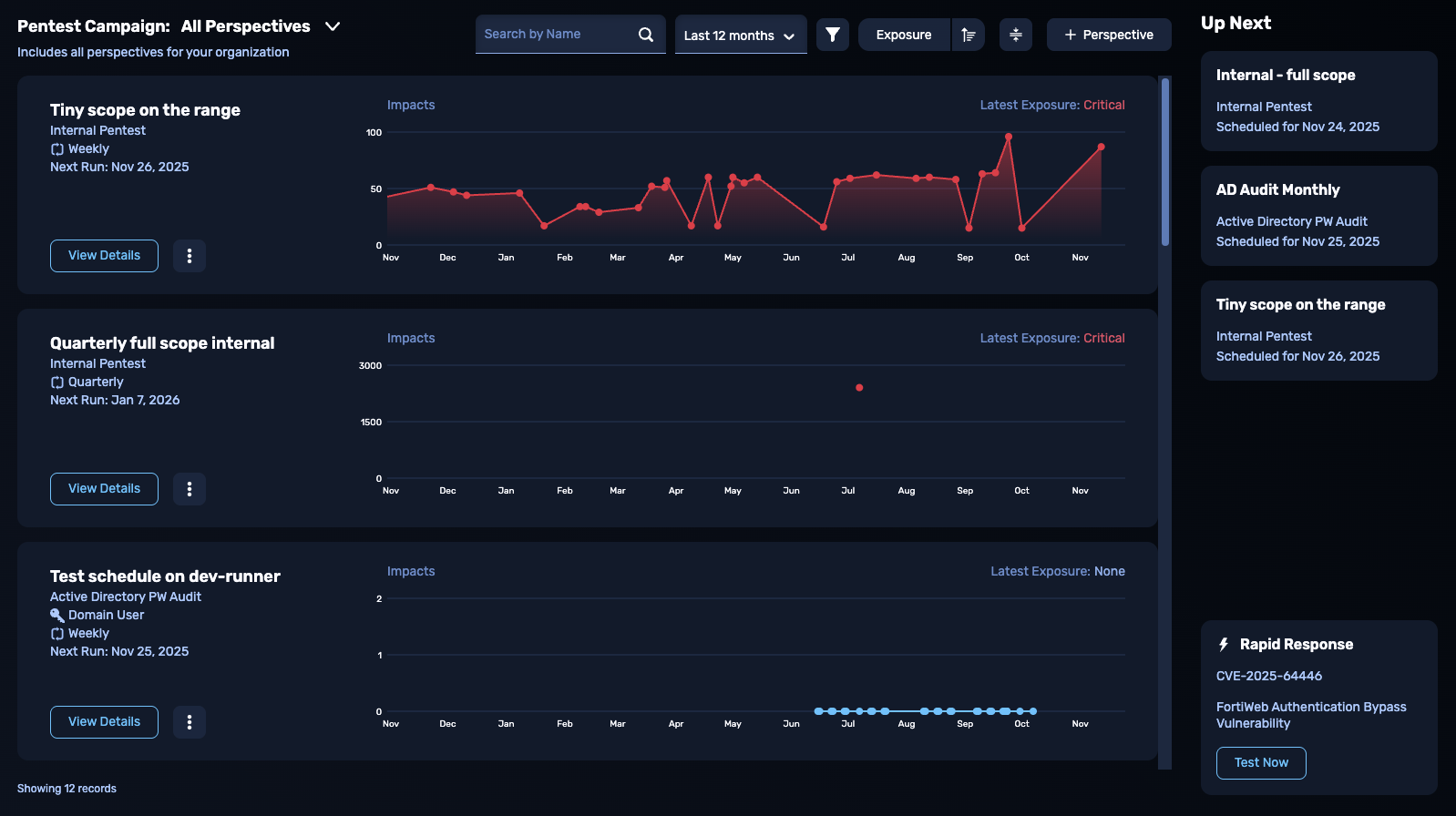
This Campaign page contains the following elements:
- Campaign name and description. The campaign name also serves as a menu, enabling you to select a different campaign.
- Controls for searching, filtering and sorting the campaigns.
- A button to switch between compact and full mode.
- A button for adding a perspective to this campaign. This can be an existing perspective, or a new perspective from Horizon3’s recommendations based on best practices.
Switching Campaigns
Clicking the campaign's name at the upper left opens a drop-down where you can select a different campaign, or create a new one.
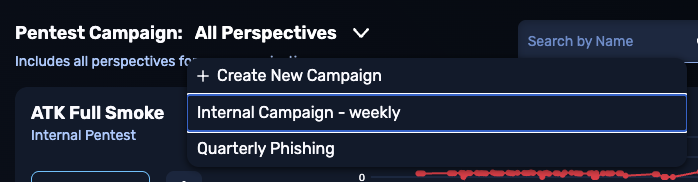
All Perspectives – the Default Campaign
Your organization automatically includes a campaign called All Perspectives that includes every perspective that has been defined. This is an easy way to get an overview of all your pentest activity at once. This default campaign cannot be deleted, and these perspectives cannot be removed from the default campaign.
You can create new campaigns in addition to the default one. In these custom campaigns, you must specifically add the perspectives that belong to that campaign. You can remove these as desired.
Adding a New Campaign
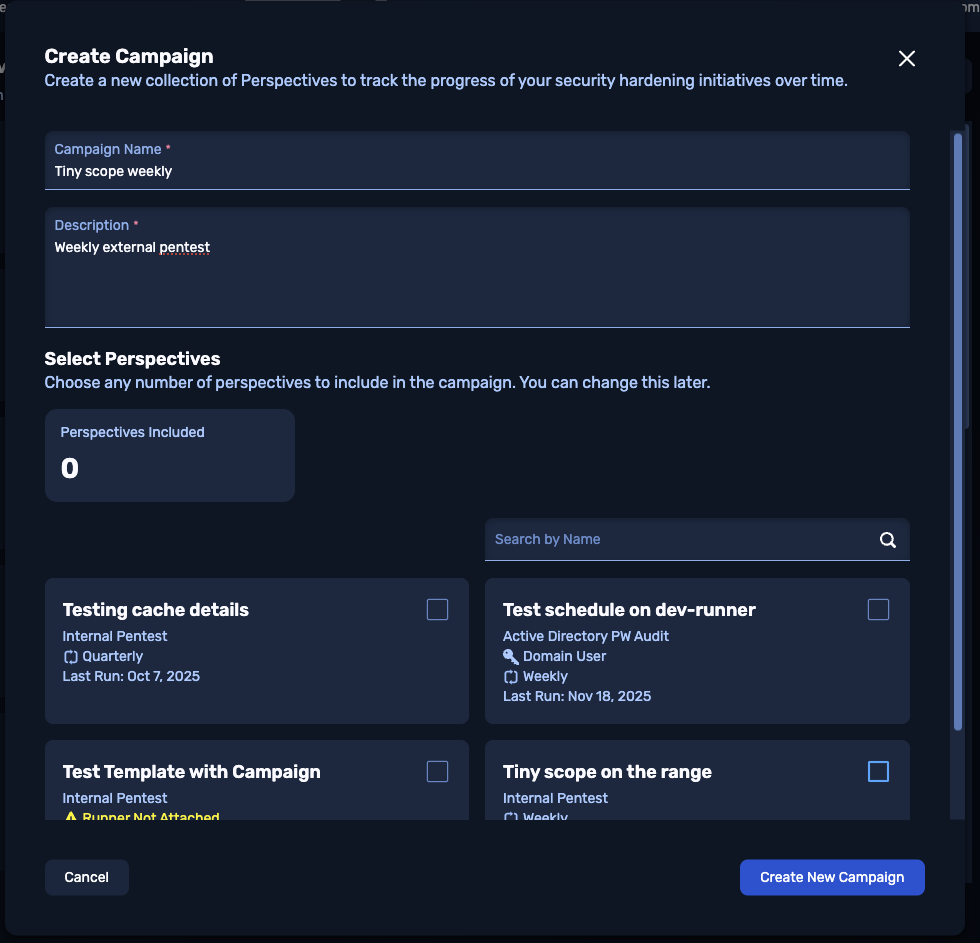
Use the campaign drop-down and select + Create New Campaign. In the resulting modal, specify the name for your new campaign, add a description to convey its purpose, then select all perspectives that should belong to this campaign. You can select all, some, or none of your existing perspectives. You can always change this later.
The maximum length for the campaign name is 128 characters. The maximum length for the description is 256 characters.
Click the Create New Campaign button to save your campaign's configuration.
Action Bar
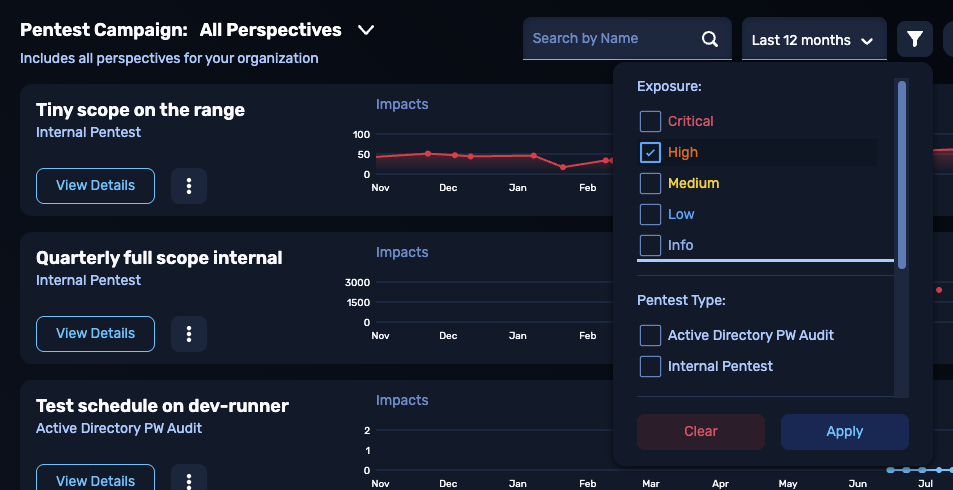
At the top of the Campaign page are controls that filter or sort the perspectives list. You can search for perspectives by name, and filter them by retrospective time range, pentest type, exposure level, and other fields. A toggle enables you to change the sort order of the perspectives list.
Compact view
Clicking the Compact View button will condense the perspective graphs vertically, allowing you to fit more perspectives on your screen.
Add Perspective
Clicking + Perspective enables you to add a perspective to this campaign. You can either add an existing perspective, or see a list of recommended perspectives based on best practices suggested by Horizon3. Here, you can also remove perspectives from custom campaigns.
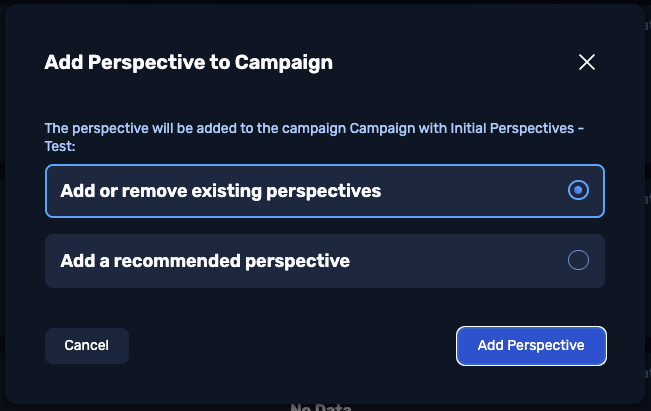
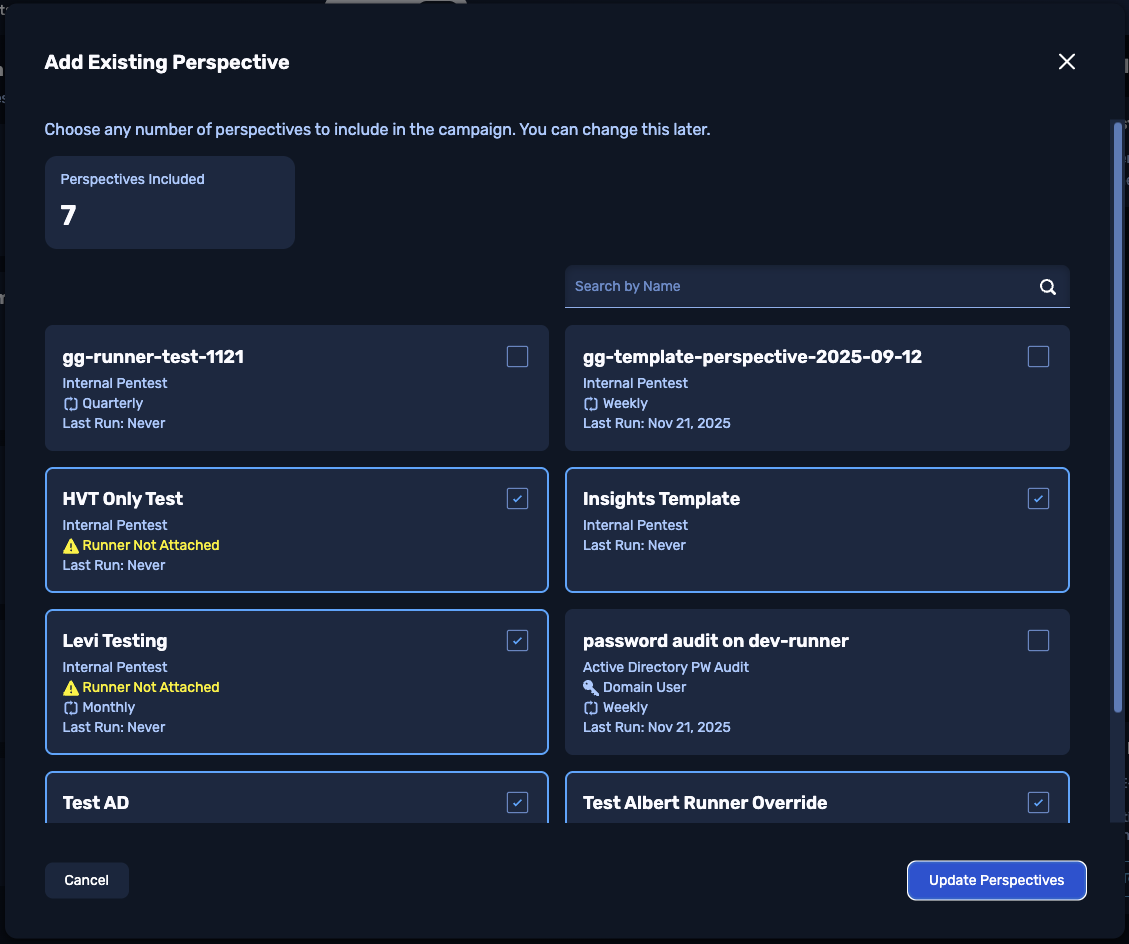
If you want to add existing perspectives, select the first option, and you will be able to select one or more perspectives to include in this campaign, similar to when you created the campaign:
All Perspectives
If you're looking at the All Perspectives default campaign, there are no options to add or remove existing perspectives, because this campaign always contains all existing perspectives.
Recommended Perspectives
You can add a perspective to your campaign by following suggestions based on Horizon3’s best practices. This modal shows a prioritized list of the types of tests we recommend that you add for more coverage. Once you have the basics covered, we’ll suggest more-specific tests to cover cloud deployments, phishing threats, and more.
By default, this modal shows only the top three recommendations. Click the link at the bottom to see more recommendations.
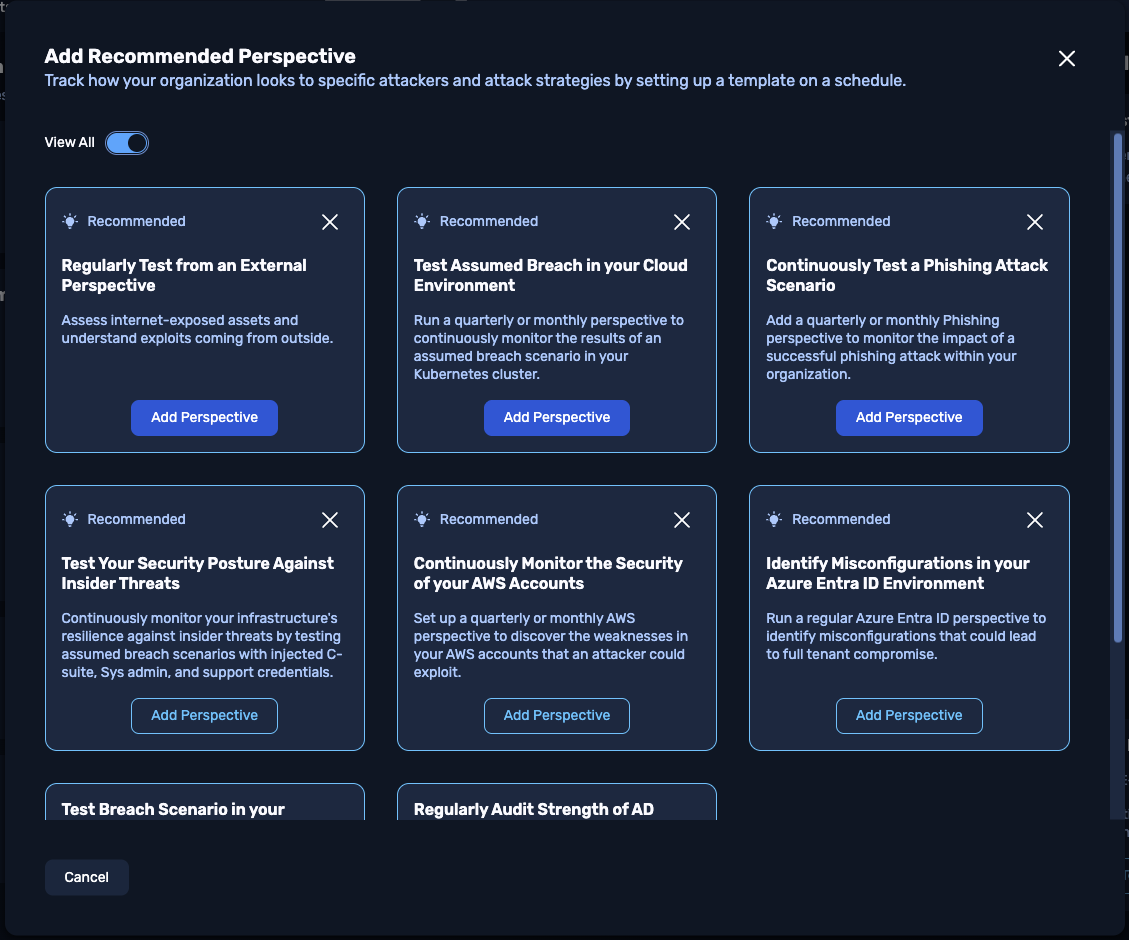
If you want to ignore a recommendation, click its X close box to dismiss it. Selecting a recommendation will take you to the template form to create a new pentest configuration for this perspective.
Perspective List
The main element on the Campaign page is the perspectives list. Here you’ll find a row for each perspective in this campaign, showing its current exposure level, impacts count over time, and other details.
Each perspective displays a View Details button to open an expanded view (described below in Perspective View), as well as an Actions () menu to rename or remove this perspective. (Perspectives cannot be removed from the default All Perspectives campaign.)
Perspectives with no attached Runner will display a warning, plus a Fix it button that links you to the perspective's template configuration, where you can assign a Runner.
Perspective View
The perspective view gives you detailed information about the pentests, weaknesses, impacts, and threats associated with the pentests in this series. It tracks results longitudinally so that you can see what’s getting better or worse.
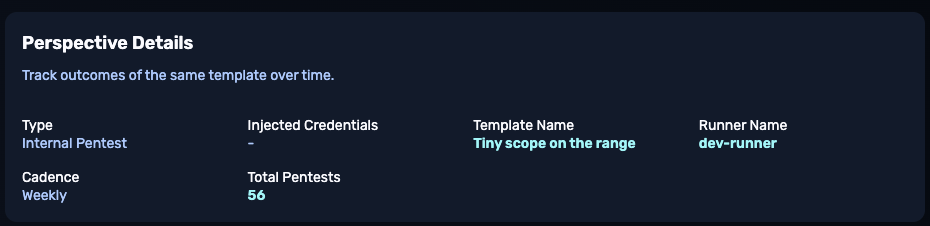
Perspective Details
The Perspective Details card, atop the perspective view, shows you basic information like the test type, template and Runner names, pentest count, and schedule cadence. Click on linked values to get more information about each one. Click on the Total Pentests count to see a modal with details about all pentest runs for this perspective.
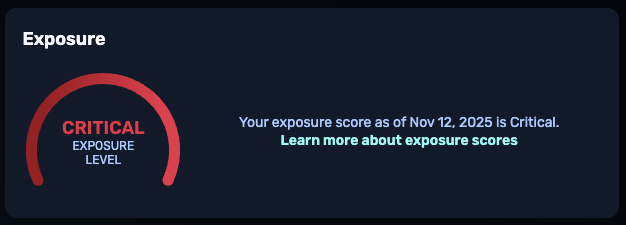
Exposure Score
This card shows the overall exposure score for this perspective, based on its most recent data (the last time the pentest ran). To learn more about how this is calculated, see Exposure Score Levels.
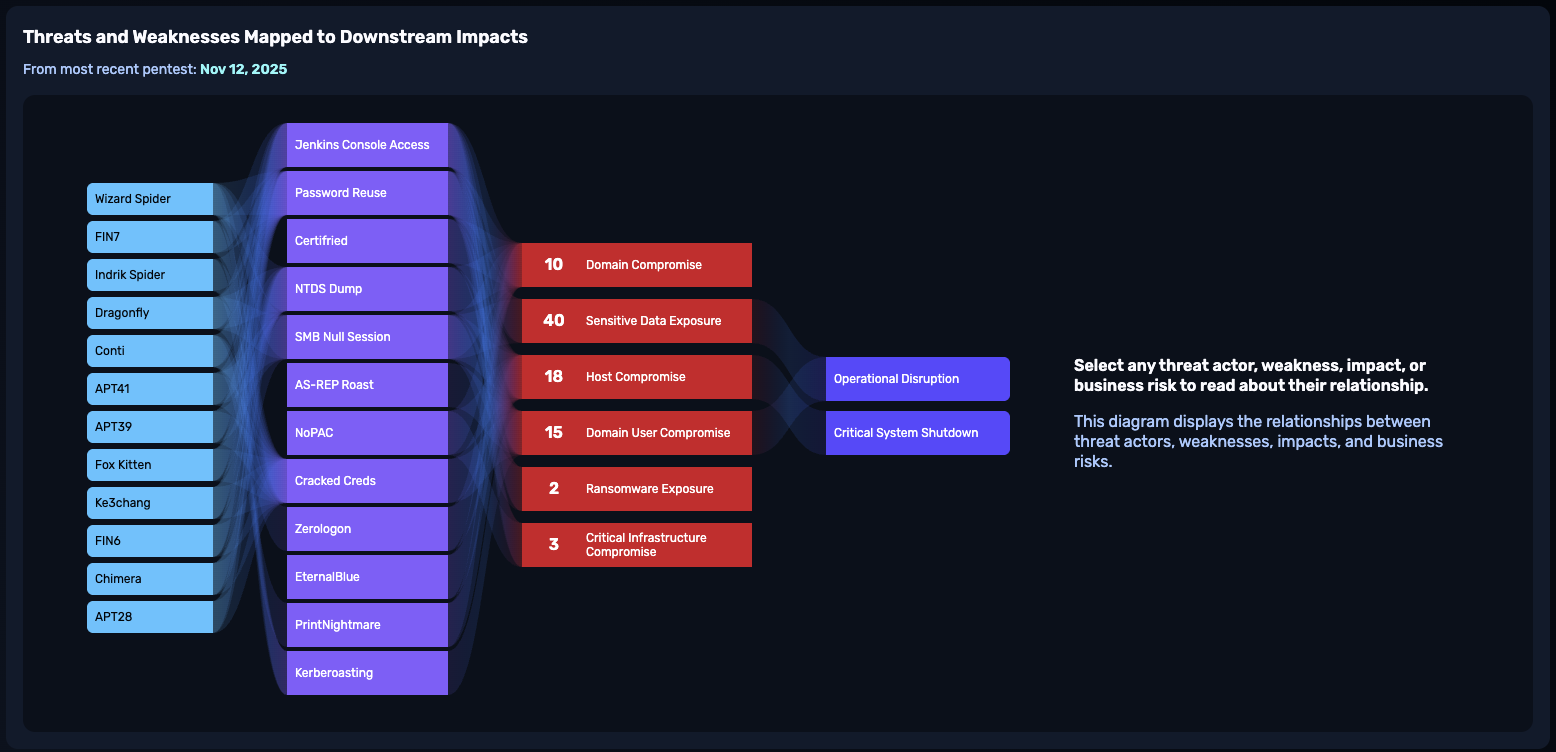
Threats and Weaknesses Diagram
This sankey diagram represents potential attack vectors, enriched by real-world Threat Actor Intelligence if this feature is enabled for your organization. This diagram shows a flow from threat actor group to exploited vulnerability, to impact, to business risk. Click on the different nodes in the diagram to learn more. This is based on the most recent pentest run in this perspective.
Weakness Charts
Next are four bar charts showing breakdowns of the weaknesses associated with this perspective, as of the most recent data:
- First, a breakdown of weakness by status, such as Open or Regressed.
- Second, a breakdown of user-supplied annotation status.
- Third is a breakdown by weakness severity.
- Last, we have a breakdown of weakness by impact type, enabling you to see which impact categories are most common in this perspective. This scrollable list will include categories like Domain Compromise and Host Compromise.

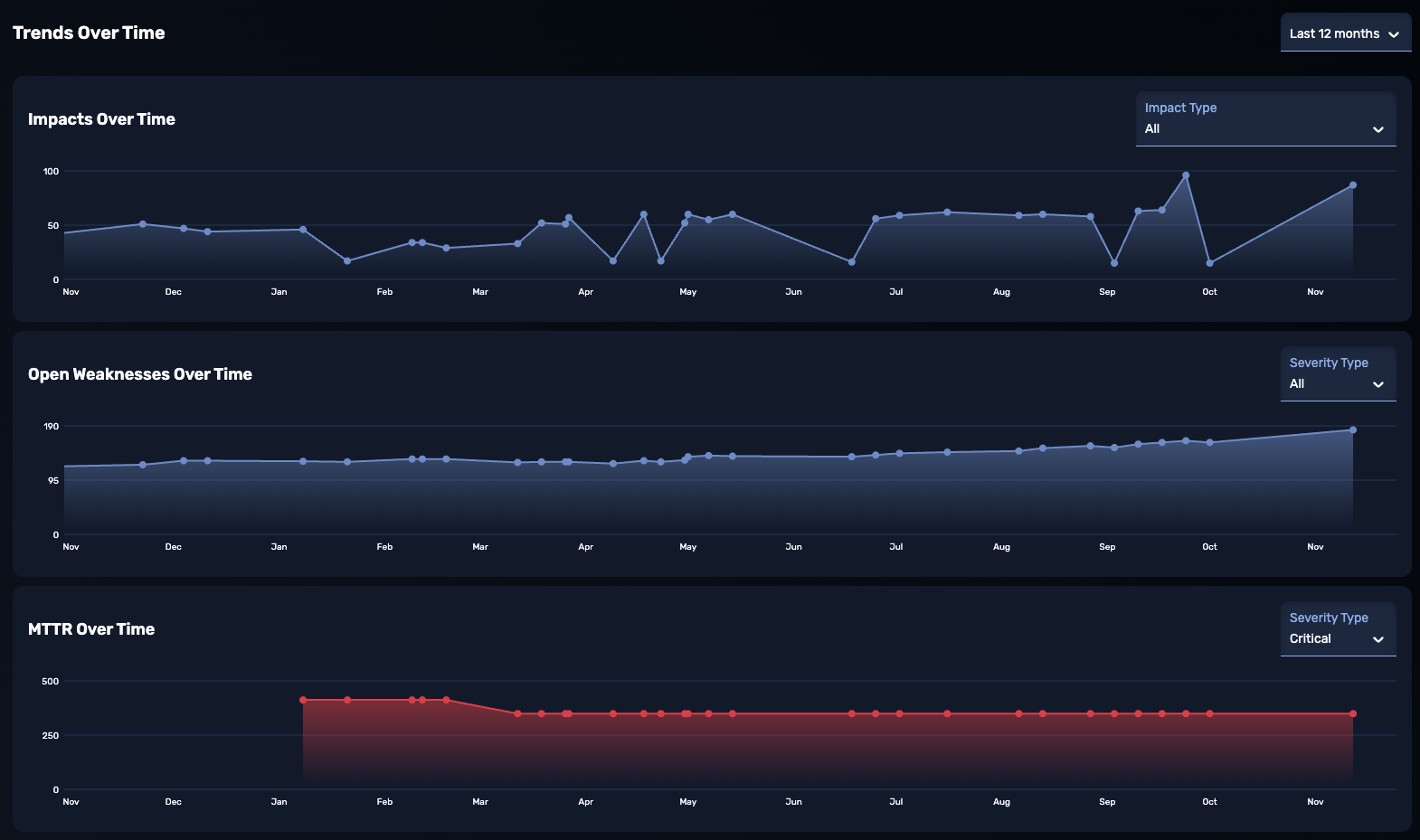
Trends over Time
At the bottom of the Perspective page are graphs showing activity in this perspective over time. There are graphs for impacts, weaknesses, and MTTR (mean time to remediation). These graphs provide drop-downs to filter to specific categories and severity levels.
Aggregating Campaigns into Insights
For a view of all your campaigns, NodeZero's Insights feature provides a combined analytics and management dashboard that shows your organization's overall exposure, remediation velocity, and risk trends over time. This facilitates streamlined, executive-level reporting of organization-wide initiatives and compliance.