Using a Proxy with NodeZero
If your organization uses a proxy for external traffic, you will need to set up your host to make use of that proxy in order to reach the NodeZero infrastructure. With these changes in place, all traffic between the NodeZero container and cloud infrastructure will use the proxy, and internal traffic will not.
Recommended If using the NodeZero OVA, the built-in n0 utility can assist with setting up the proxy.
If running your own NodeZero host, steps are outlined below for Docker on Ubuntu and Podman on RHEL. Other OS configurations might vary.
Configure a Network Proxy on the NodeZero OVA
SOCKS proxies
NodeZero does not support SOCKS-type proxies. Please use only HTTP/HTTPS proxies.
To use NodeZero with a proxy download and configure the NodeZero Host VM (OVA) located at Downloads.
The NodeZero host VM (OVA) comes with a n0 utility script that helps with management of the system. To set up a proxy with n0, start by entering n0 into the command prompt and entering option 4. In the example shown, the proxy server is set up on 10.0.0.1:8888 with no authentication.
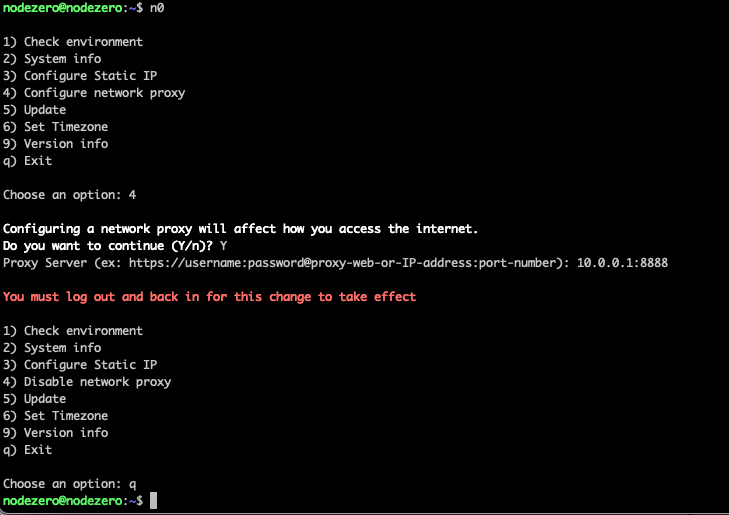
For changes to take effect
After setting the proxy, the user must log out and back in to get the changes to take effect.
The NodeZero OVA host is now set up to utilize a proxy for your NodeZero pentests.
Manually Configure a Network Proxy on Non-OVA Host
Proxy format
Ensure that the proxy is formatted as follows: https://username:password@proxy-web-or-IP-address:port-number
This guide assumes Docker is already installed. Four files must be updated to support a proxy with NodeZero on Docker:
/etc/environment
/etc/docker/daemon.json
/etc/systemd/system/docker.service.d/http-proxy.conf
~/.docker/config.json
Configure /etc/environment
This sets the env variables for your shell environment. Make the proxy available in the shell interface by adding the following to /etc/environment
HTTP_PROXY="your proxy settings"
HTTPS_PROXY="your proxy settings"
NO_PROXY="localhost,127.0.0.1,::1,172.17.0.0/16"
http_proxy="your proxy settings"
https_proxy="your proxy settings"
no_proxy="localhost,127.0.0.1,::1,172.17.0.0/16"
Configure /etc/docker/daemon.json
Create and fill out /etc/docker/daemon.json
sudo vim /etc/docker/daemon.json
/etc/docker/daemon.json should look like the following:
{
    "proxies": {
        "http-proxy": "your proxy settings",
        "https-proxy": "your proxy settings",
        "no-proxy": "localhost,127.0.0.1,::1,172.16.0.0/16,10.0.0.0/8,192.168.0.0/16"
    }
}
Configure /etc/systemd/system/docker.service.d/http-proxy.conf
Create and fill out /etc/systemd/system/docker.service.d/http-proxy.conf
sudo mkdir -p /etc/systemd/system/docker.service.d
sudo vim /etc/systemd/system/docker.service.d/http-proxy.conf
The contents of http-proxy.conf should look like the following.
[Service]

Environment="HTTP_PROXY=your proxy settings"
Environment="HTTPS_PROXY=your proxy settings"
Environment="NO_PROXY=localhost,127.0.0.1,::1,172.17.0.0/16"
Environment="http_proxy=your proxy settings"
Environment="https_proxy=your proxy settings"
Environment="no_proxy=localhost,127.0.0.1,::1,172.17.0.0/16"
Reload and restart the Docker service.
sudo systemctl daemon-reload
sudo systemctl restart docker
Configure ~/.docker/config.json
Set up the config.json in the local .docker directory.
Running as root?
If running NodeZero from root, change the directory to /root/.docker/config.json.
The following command will create the necessary directory and file if it is not present, and will make the current $USER the owner.
mkdir -p ~/.docker && touch ~/.docker/config.json
sudo chown -R $USER:$USER ~/.docker
Fill out ~/.docker/config.json by adding the proxies section.
Existing auths section
The auths section might or might not already exist in your file, depending on whether you've authenticated to container registries. If it exists, preserve it when adding the proxies section.
{
    "auths": {
        "registry.example.com": {
            "auth": "dXNlcm5hbWU6cGFzc3dvcmQ="
        }
    },
    "proxies": {
        "default": {
            "httpProxy": "your proxy setting",
            "httpsProxy": "your proxy setting",
            "noProxy":"localhost,127.0.0.1,::1,172.16.0.0/16,10.0.0.0/8,192.168.0.0/16"
        }
    }
}
This guide assumes Podman 4.0+ is already installed on a RHEL-based system. Two areas must be configured to support a proxy with NodeZero on Podman:
/etc/environment
~/.config/containers/containers.conf
Configure /etc/environment
Set the system-wide proxy environment variables by adding the following to /etc/environment:
HTTP_PROXY="your proxy settings"
HTTPS_PROXY="your proxy settings"
NO_PROXY="localhost,127.0.0.1,::1,10.0.0.0/8,172.16.0.0/12,192.168.0.0/16"
http_proxy="your proxy settings"
https_proxy="your proxy settings"
no_proxy="localhost,127.0.0.1,::1,10.0.0.0/8,172.16.0.0/12,192.168.0.0/16"
Configure ~/.config/containers/containers.conf
Podman uses a TOML-based configuration file instead of Docker's JSON format. Create or edit ~/.config/containers/containers.conf:
mkdir -p ~/.config/containers
vim ~/.config/containers/containers.conf
Add the following proxy configuration:
[engine]
env = [
    "http_proxy=your proxy settings",
    "https_proxy=your proxy settings",
    "no_proxy=localhost,127.0.0.1,::1,10.0.0.0/8,172.16.0.0/12,192.168.0.0/16"
]
Running as root?
If running NodeZero with sudo (which is standard for Podman), you may also need to configure the proxy for the root user at /root/.config/containers/containers.conf.
Verify proxy configuration
You can verify that Podman picks up the proxy settings by running:
sudo podman info | grep -i proxy
The NodeZero host is now configured to use a proxy with NodeZero.